



Need to mark an exact spot on Google Maps? Learn how to drop a pin on iPhone, Android, and desktop, then share, save, remove, or use it for directions and coordinates.
You may need to share a meeting point, mark where you parked, identify a field entrance, or send someone a place that has no clear street address. Learning how to drop a pin on Google Maps makes these tasks much easier.
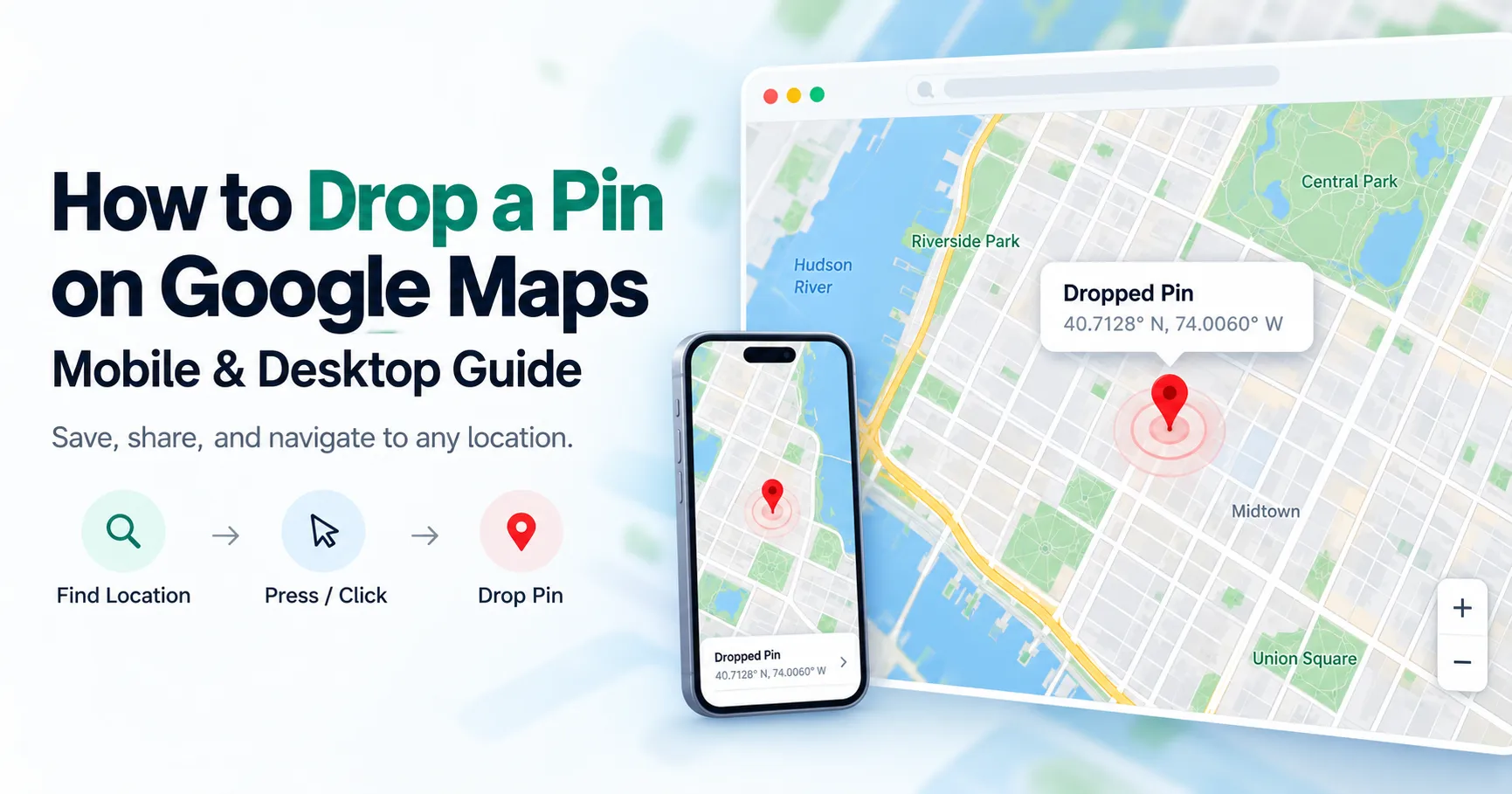
A dropped pin marks one exact point on the map. You can use it for directions, share it with someone, save it for later, or check its coordinates. The steps are slightly different on mobile and desktop, but the basic idea is simple. On a phone, you usually press and hold a spot. On a computer, you select the location with your mouse or trackpad.
How Do You Drop a Pin on Google Maps?
On iPhone or Android, open Google Maps, find the area you want, then press and hold the exact point until a pin appears. On desktop, click the desired place on the map. Google Maps then shows a location card with details and available actions such as Directions, Share, or Save.
The method works well when you need to mark a place that does not have a clear business name or address.
What Is a Dropped Pin on Google Maps?
A dropped pin is a location marker you place manually on a map. Instead of searching for a named place, you choose the exact point yourself.
Dropped pins are useful for locations such as:
- A building entrance
- A trailhead
- A parking area
- A campsite
- A field or plot
- A meeting point
- A spot inside a large property
A dropped pin is not automatically the same as a saved place. It may only remain selected until you clear it unless you save or label the location.
How to Drop a Pin on Google Maps on iPhone
If you are searching for how to drop a pin on Google Maps iPhone, the process is simple.
- Open the Google Maps app.
- Search for the general area or move around the map manually.
- Zoom in until you can see the exact spot you want.
- Press and hold that location on the map.
- Wait for the location marker or dropped pin to appear.
- Open the location card at the bottom of the screen.
- Choose an available option such as Directions, Share, or Save.
The same basic method answers how to drop a pin on iPhone Google Maps. The key action is pressing and holding the exact point rather than tapping quickly.
Button names or placement may vary slightly as the Google Maps app changes.
How to Drop a Pin on Google Maps on Android
For how to drop a pin on Google Maps Android, use the same press-and-hold idea, but the layout may look slightly different.
- Open Google Maps on your Android phone.
- Find the location by searching or moving the map.
- Zoom in for better accuracy.
- Press and hold the exact place.
- Wait for the pin and location card to appear.
- Review the details and choose the action you need.
You can then get directions, share the point, save it when supported, or view location information.
Zooming in before dropping the pin helps prevent placing it on the wrong side of a road or at the wrong entrance.
How to Drop a Pin on Google Maps on Desktop
If you want to know how to drop a pin on Google Maps desktop, use a browser rather than a press-and-hold gesture.
- Open Google Maps in your web browser.
- Search for the general location or move the map manually.
- Zoom in to the area you need.
- Click the exact point on the map.
- Review the marker and location information that appears.
- Open the location details for directions, sharing, saving, or coordinates where available.
A desktop computer uses a mouse or trackpad, so a single click replaces the long press used on phones.
How to Pin or Mark a Location Without an Address
Knowing how to pin a location on Google Maps is especially useful when the place has no visible address.
For example, you might want to mark a farm gate, campsite, hiking trail, construction entrance, or meeting spot inside a park. Search for the surrounding area, zoom in, and select the exact point.
The same method works if you want to learn how to mark a location on Google Maps. You do not always need a street address or business listing.
For better accuracy, switch to a closer map view before placing the pin.
How to Drop a Pin and Share a Location
If you need to send the location to another person, first place the pin and then use the sharing option.
Here is how to share a pin on Google Maps:
- Drop the pin at the correct location.
- Open the location card.
- Select Share.
- Choose a messaging, email, or other supported sharing app.
- Send the location link.
The recipient can usually open the link in Google Maps or a browser.
Before sending it, check that the pin is actually on the intended point. This matters for large properties, parking areas, or buildings with several entrances.
How to Share Your Current Location
Sharing your current location is different from manually dropping a pin.
A dropped pin is a fixed point that you select. Your current location is based on the position detected by your phone.
If you want to send your current position, you can either place a pin at your current spot and share it, or use Google Maps' location-sharing features when available.
Location permission may need to be enabled for Google Maps to detect where you are.
If you want someone to see your movement over time rather than one fixed point, live location sharing is the more suitable feature. A static pin does not update as you move.
How to Put Someone Else's Location on Google Maps
You can put another person's location on your map if you already know where it is.
You can:
- Search for the address they gave you
- Open a Google Maps link they sent
- Enter their latitude and longitude
- Drop a pin at the place they described
Google Maps cannot simply show another person's live position without them sharing it through a supported location-sharing feature.
If someone sends you a location link, opening it is usually the easiest way to view their marked place.
How to Save a Pin on Google Maps
If you want to return to the location later, you may be able to save it.
Here is how to save a pin on Google Maps:
- Select or drop the pin.
- Open the location card.
- Choose Save if that option is available.
- Add the location to one of your saved lists.
Depending on your version of Google Maps, available list names and buttons may vary.
Remember that dropping a pin does not always mean the location has been stored permanently. Saving the place makes it easier to find again later.
How to Get Coordinates From a Dropped Pin
If you need the exact geographic position, you can look for latitude and longitude information in the pin details.
For example:
40.7128, -74.0060
The first number is latitude. The second number is longitude.
To understand how to get coordinates from a dropped pin, select the point and review the location information shown by Google Maps. Coordinates may appear in the location card, information panel, or related details depending on your device and app version.
Coordinates are useful when you need a location that does not have a reliable street address.
How to Remove a Dropped Pin on Google Maps
If you placed the pin by mistake, you can usually clear the active selection.
For how to remove a dropped pin on Google Maps, try one of these actions:
- Tap or click another location
- Close the location card
- Use the Back button
- Clear the active map selection
Removing a temporary dropped pin is different from removing a saved place. If you previously saved the location, you may also need to remove it from the relevant saved list.
Why Can't I Drop a Pin on Google Maps?
If a pin does not appear, the problem may be the gesture, map loading, or the app itself.
Common causes include:
- Tapping instead of pressing and holding on mobile
- Selecting an existing place label
- Using a map view that is too zoomed out
- A temporary app problem
- An outdated Google Maps app
- A slow or unstable connection
Try zooming in, pressing and holding a little longer, restarting the app, or checking for updates.
You can also try selecting a nearby point to see whether the problem affects only one area.
How to Use a Dropped Pin for Directions
A dropped pin can act as the destination for a route.
Select the pin, choose Directions, and then choose a travel mode if available. Google Maps may offer driving, walking, cycling, or public transit routes depending on the location.
Check the final route carefully. A pin might sit inside a park, field, campus, or large property while the nearest usable road leads to a different entrance.
Dropped Pin vs Saved Place vs Current Location
These Google Maps features serve different purposes.
A dropped pin is a manually selected point and may be temporary.
A saved place is stored so you can find it again later.
Your current location is the position detected by your phone.
A shared location is a point or live location you send to another person.
Understanding these differences makes it easier to choose the right feature.
Common Mistakes When Dropping or Sharing a Pin
One common mistake is placing the pin before zooming in far enough. A small error on the screen can move the selected point to another road, building, or entrance.
Also avoid sharing a location before checking it. Make sure the pin matches the exact place you intended.
Other mistakes include assuming the pin is automatically saved, confusing a nearby business label with your manual pin, sharing a live location when you intended to send one fixed point, or copying only part of a coordinate pair.
Final Thoughts
Learning how to drop a pin on Google Maps is useful when an address is not precise enough. On mobile, press and hold the desired point. On desktop, select the location with a click.
Once the pin is placed, you can share it, save it, use it for directions, or check its coordinates. Current-location sharing is different from sending a fixed pin, so choose the option that matches your goal. Before sending any location, zoom in and confirm that the marker sits on the correct spot.
Frequently Asked Questions
Press and hold a location on iPhone or Android, or click a point on desktop. Open the location card, choose Share, and send the generated location link through a supported app. Check the pin position before sending it.
Open Google Maps, find the area, zoom in, and press and hold the exact point you want. A pin and location card should appear. You can then use that location for directions, sharing, saving, or other available actions.
You can mark your current position by selecting the point where your location marker appears, or use Google Maps' location-sharing tools. A static pin stays at one point, while live location sharing can update as you move.
You can search for an address, enter coordinates, open a shared location link, or manually drop a pin on the map. If the place has no clear address, zoom in and select the exact point you want to mark.
On mobile, make sure you press and hold rather than tap. Try zooming in, restarting Google Maps, checking your connection, or updating the app. If one point does not work, test another nearby location.
You can send one fixed point by dropping a pin at your location and sharing it. If you want the person to see your changing position for a period of time, use a supported live location-sharing feature instead.