



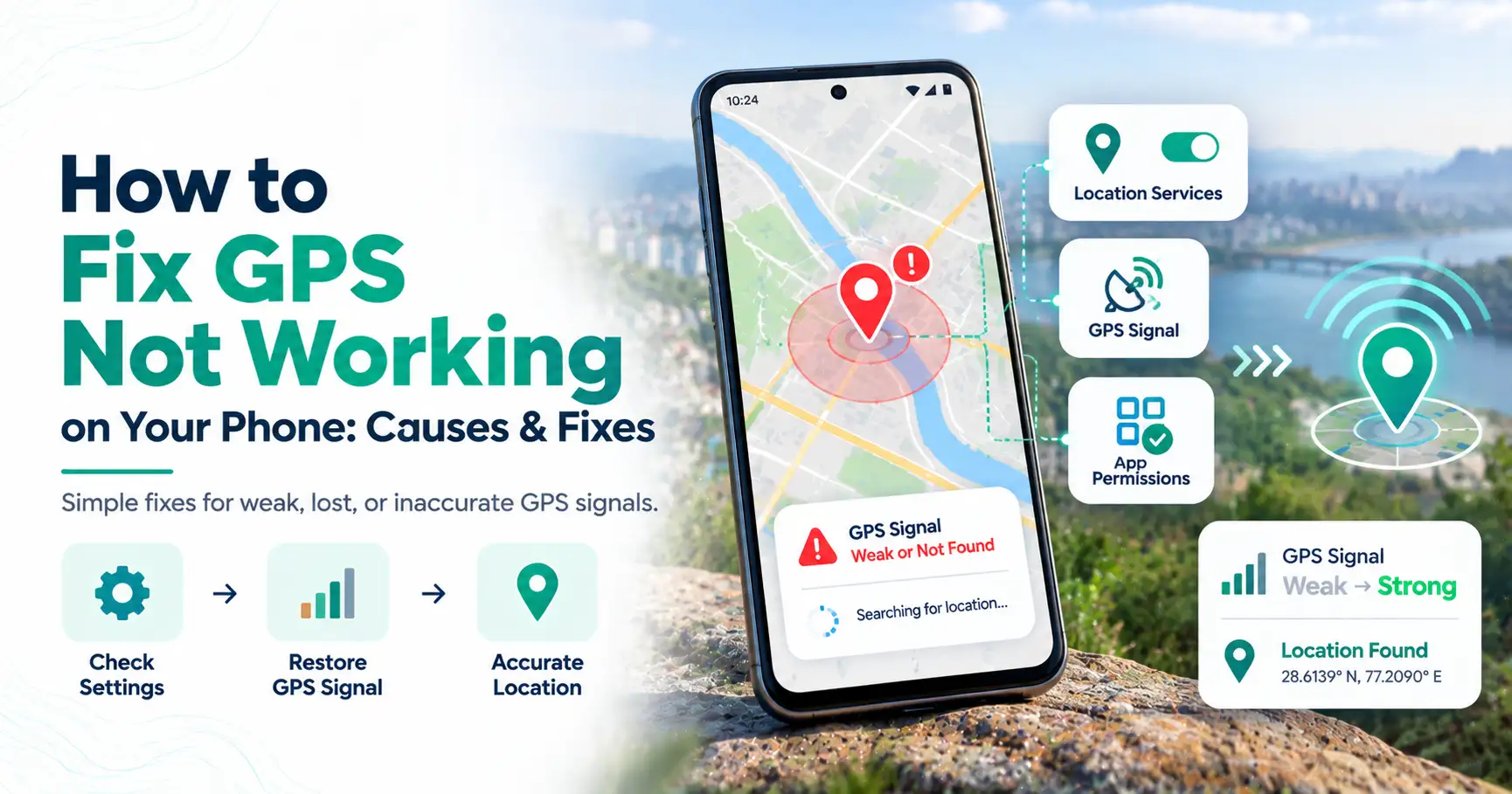
GPS stopped working or showing the wrong location? Learn what causes GPS problems and try simple fixes for lost signals, location errors, and navigation issues on iPhone and Android.
Your map cannot find your location. The blue dot is stuck in one place. Or your navigation suddenly stops updating while you are on the road. These problems are frustrating, but they do not always mean your phone's GPS is broken.
If you are trying to learn how to fix GPS not working, start with the simple causes. Location settings, app permissions, weak satellite signals, software errors, and network issues can all affect your phone's location. Most problems can be checked in a few minutes. The steps below cover common fixes for both iPhone and Android devices and explain what to try when your GPS signal keeps disappearing.
Why Is My GPS Not Working?
Your GPS may not work because Location Services are off, the app lacks permission, satellite reception is weak, or battery settings are limiting location access. Outdated software, temporary app errors, connectivity problems, or interference can also affect positioning and navigation.
If you are asking why is my GPS not working, first identify the type of problem. Is your location completely missing, slightly inaccurate, or correct while navigation fails?
That difference matters. GPS provides positioning data, while a navigation app combines location with maps, routes, traffic, and other information.
How to Fix GPS Not Working: Quick Fixes
Try these basic fixes before changing advanced settings. Test your map or navigation app after each step so you can identify what solved the problem.
1. Check That Location Services Are Turned On
Your phone must allow location access before navigation apps can determine where you are.
On an iPhone, go to Settings > Privacy & Security > Location Services and make sure Location Services is enabled.
On Android, check that Location is turned on. The exact path and names can differ based on your phone brand and Android version.
2. Check the App's Location Permission
Location can be enabled for the phone while being blocked for one specific app.
Open the app's permissions and confirm that your navigation or map app has suitable location access. On an iPhone, also check Precise Location if the app needs your exact position.
Android phones may offer similar accuracy and permission controls. If only one map app fails while others work, its permission settings are a good place to start.
3. Move to an Open Area
GPS relies on signals from satellites. Your phone may have trouble receiving them inside some buildings, underground parking areas, tunnels, or places with major obstructions.
If you see a GPS signal lost warning, move outdoors or toward a more open area. Wait briefly and check whether your location begins updating again.
A lost signal does not automatically mean the GPS hardware has failed.
4. Toggle Airplane Mode
Turn Airplane Mode on briefly, then turn it off. This can help clear some temporary connectivity or location-assistance problems.
Airplane Mode does not "reset GPS satellites." Think of this step as a quick way to refresh related wireless connections before trying more involved fixes.
5. Restart Your Phone
A restart can clear temporary system or app problems that affect location services.
Restart the device normally, open the affected map app again, and check your position. This simple step is especially useful if GPS was working normally and suddenly stopped.
6. Check Wi-Fi or Mobile Data
GPS itself can determine position using satellite signals, but map and navigation apps often depend on internet access for searches, map data, traffic, routes, and assisted location features.
If your position appears but maps or directions do not load, check Wi-Fi or mobile data. The problem may be connectivity rather than GPS.
7. Update Your Phone and Map App
Check for available updates to your operating system and navigation app.
Updates can fix known bugs and compatibility problems. However, an update is not guaranteed to solve every GPS issue, so continue troubleshooting if the problem remains.
GPS Not Working on iPhone: What to Check
If you have location not working on iPhone, begin with Location Services.
Open Settings > Privacy & Security > Location Services. Confirm that Location Services is enabled, then find the affected app and review its permission. Enable Precise Location when accurate positioning is needed and appropriate for that app.
People searching how to activate GPS in iPhone may expect a switch called "GPS." iPhone instead manages GPS and other location technologies through Location Services.
If the settings look correct, close and reopen the affected app. Restart your iPhone and install available iOS or app updates.
If Apple Maps works but another navigation app does not, focus on that app's settings and permissions rather than assuming the phone's GPS has failed.
GPS Not Working on Android: What to Check
For a GPS not working Android problem, first confirm that Location is enabled. Then review the affected app's location permission and any available location accuracy settings.
Battery restrictions can also matter. If a navigation app stops updating when running in the background, check whether aggressive battery-saving settings are limiting it. Temporarily changing the restriction can help you test the cause.
Restart the app and phone if needed, then check for Android and app updates.
Android settings vary between Samsung, Google Pixel, Motorola, OnePlus, Xiaomi, and other brands. Menu names and paths may therefore look different on your device.
How to Fix "GPS Signal Lost"
A "GPS signal lost" message usually means your phone cannot get reliable positioning data at that moment.
Try these steps:
Move outdoors or toward an open area.
Leave tunnels, underground parking, or heavily obstructed locations when possible.
Confirm that Location Services are enabled.
Check the navigation app's location permission.
Close and reopen the affected app.
Restart the phone if signal problems continue.
If GPS works outdoors but struggles only in certain locations, poor satellite reception may be the reason. If several location apps fail even in a clear outdoor area, continue with software and settings checks.
Why Is My GPS Not Giving Me Directions?
A phone can know your location while the navigation app still fails to provide directions.
The app may lack permission, have trouble loading the route, need internet access for map data, or be temporarily frozen. Confirm your location is updating, check connectivity, reload the route, and restart the app.
If the route appears but you cannot hear spoken directions, the GPS itself may be working correctly. Check the app's voice guidance, media volume, mute controls, and Bluetooth audio output.
For example, spoken directions may be sent to a connected car or headset instead of the phone speaker.
How Do I Reset My GPS?
Most smartphones do not have one universal button labeled "Reset GPS." Start with less disruptive steps instead.
Try restarting your phone, turning Location Services off and back on, and reopening the affected navigation app. If those steps fail, you can consider resetting relevant location or network settings.
On an iPhone, resetting Location & Privacy is broader than restarting GPS. It resets privacy and location permissions, so apps may ask for access again afterward.
Android reset options depend on the manufacturer and software version. Check your device's official support information before resetting settings you are unsure about.
A full factory reset should not be an early GPS troubleshooting step.
GPS Jamming and Interference: Could It Affect Your Location?
GPS jamming is radio interference that prevents or disrupts reliable satellite reception. A GPS jamming map may be used in some contexts to report or visualize areas where interference has been observed.
For an ordinary phone problem, however, do not assume jamming is the cause. Disabled settings, missing permissions, weak reception, and software issues are more practical things to check first.
If several devices show unusual location problems in the same area, interference is one possible explanation. That alone does not prove GPS jamming.
Why Did My GPS Suddenly Stop Working?
A sudden GPS failure can happen after a permission change, app crash, software change, battery-saving setting, or move into an area with poor satellite reception.
Temporary connectivity or map-service problems can also make navigation appear broken even when basic positioning still works.
Use this order to troubleshoot:
Location settings → app permissions → signal conditions → connectivity → restart → updates
This sequence starts with simple causes and helps avoid unnecessary changes to your phone.
When GPS Still Does Not Work
If the basic fixes fail, test another location-based app. This can help separate an app problem from a wider phone problem.
For example, if one navigation app cannot find you but another map app shows your position correctly, the issue is more likely related to the first app. Review its permissions, settings, and updates.
If every location app fails, test the phone outdoors and install any available system updates. Think about recent setting or software changes as well.
If location continues to fail across multiple apps under good reception conditions, contact the phone manufacturer's official support or an authorized service provider. Further testing may be needed before concluding that the device has a hardware fault.
Final Thoughts
Knowing how to fix GPS not working starts with checking the basics rather than resetting the entire phone. Make sure Location Services are on, review app permissions, move somewhere with a clearer satellite view, and check internet access when your navigation app needs it.
Next, restart the app or phone and install available updates. Reset location or related settings only when simpler fixes fail. If every location app continues to have problems, official device support can help determine whether the issue goes beyond normal settings or software.
Frequently Asked Questions
Start by turning on Location Services and checking the affected app's location permission. Move to an open area if satellite reception is poor. Then restart the app or phone and check for available updates. If maps load poorly, also confirm that Wi-Fi or mobile data is working.
GPS can suddenly stop working because a location permission changed, Location Services were disabled, satellite reception became weak, or an app developed a temporary error. Battery-saving settings and software problems can also interfere. Check your location settings and permissions before moving to more advanced troubleshooting.
Move outdoors or somewhere with a clearer view of the sky, then confirm Location Services and app permissions are enabled. Restart the navigation app if needed. If the problem continues, restart the phone and test another location app to see whether the issue affects the whole device.
Check Location Services, app permissions, and signal conditions first. Next, verify connectivity where the app requires it, restart your phone, and install available updates. If several location apps still fail outdoors under good conditions, consider contacting your phone manufacturer's official support for further troubleshooting.
Navigation can fail even when GPS positioning works. The app may have lost location permission, lack required internet access, fail to load map data, or experience a temporary software problem. Check whether your position updates correctly, then review connectivity, permissions, route loading, and the navigation app itself.
Start navigation and make sure voice guidance is enabled in your navigation app. Raise the phone's media or navigation volume and check that guidance is not muted. If Bluetooth is connected, spoken directions may be playing through your car, headphones, or another connected audio device.