



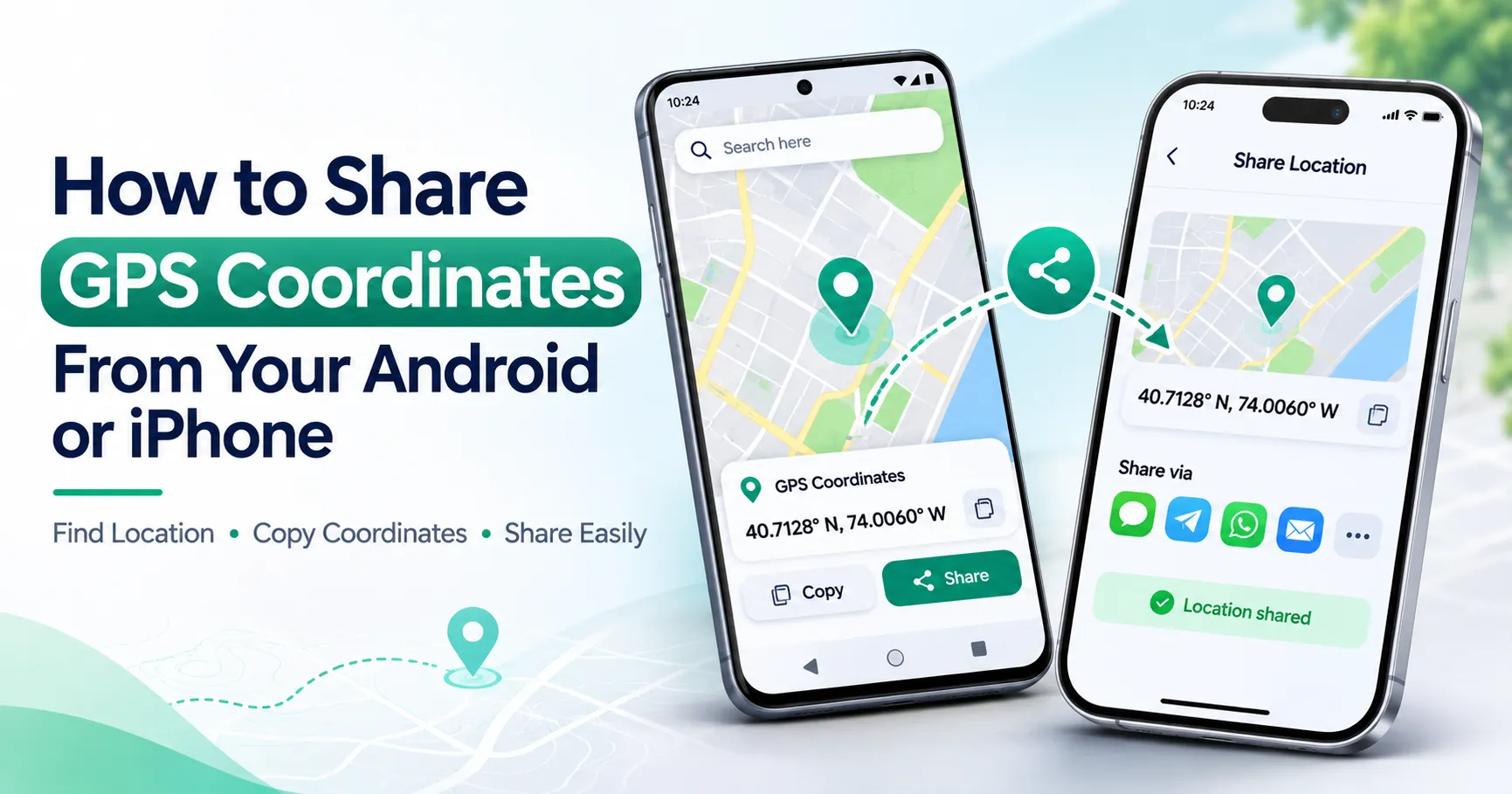
Want to share your exact location? Learn how to find, copy, and send GPS coordinates from Android or iPhone using Google Maps, Apple Maps, SMS, and WhatsApp, with simple steps for both devices.
Need to send someone the exact location of a meeting point, a remote place, or an address that is difficult to find? You can share GPS coordinates from either an Android phone or an iPhone. Coordinates use latitude and longitude to identify a location, while map links let the recipient open that point in a navigation app. You can send them through text messages, WhatsApp, or other messaging apps. The steps vary slightly between devices, but Android and iPhone users can share locations with each other. You can also choose between sending one fixed location and sharing your movements in real time.
What Does It Mean to Share GPS Coordinates?
Sharing GPS coordinates means sending the latitude and longitude of a geographic point to another person. Latitude shows how far north or south the point is, while longitude shows how far east or west it is. The recipient can enter the values into a map app or open a shared map link to find the location.
For example, a coordinate pair might look like 37.421998, -122.084000. The first number is latitude and the second is longitude. Together, they identify a point on the Earth's surface.
How to Share GPS Coordinates on Android
You can use Google Maps on most Android phones to find a location, drop a pin, and share it. The exact buttons may vary slightly by phone brand and app version.
To share a location using Google Maps:
Open Google Maps on your Android phone.
Turn on your phone's location service if you want to share where you are now.
Find your current position using the blue location dot, or move the map to the place you want to share.
To select a point that is not already marked, touch and hold that spot until a pin appears.
Tap the place name or address shown at the bottom of the screen.
Tap Share and choose a messaging app, email, or another available option.
Select the recipient and send the location link.
If you need the numerical coordinates rather than a map link, look for the latitude and longitude in the location details. You can also search for a point in Google Maps and use its pin to identify the exact place before sharing it.
This is a practical way to understand how to share GPS coordinates on Android. When you want to copy and share GPS coordinates, check that you have selected the intended point before sending it. A dropped pin may represent a place different from your phone's current position.
How to Share GPS Coordinates on iPhone
An iPhone user can share a place through Apple Maps or Google Maps. Apple Maps also provides a way to view and copy the coordinates of a dropped pin.
To find coordinates using Apple Maps:
Open the Maps app on your iPhone.
Touch and hold the map at the location you want to mark.
Tap the pin or open its details.
If the pin is saved, open Places, select Pinned, and tap the relevant pin.
Swipe up to find the Coordinates section.
Touch and hold the coordinate values, then tap Copy.
Paste them into Messages, WhatsApp, email, or another app.
You can also share a place directly from its information card. Tap the Share button and choose how you want to send it.
These steps explain how to share GPS coordinates on iPhone when you need numerical values. If the recipient only needs to reach a place, sharing its map link may be more convenient. Before you share exact GPS coordinates, check that the pin marks the correct entrance, building, or meeting point.
How to Share GPS Coordinates from Android to iPhone
Yes, an Android user can share GPS coordinates with someone using an iPhone. Coordinates are not tied to a particular phone brand, and a standard Google Maps link can generally be opened on either platform.
For example, if you are using an Android phone and want to send a meeting point to an iPhone user:
Open Google Maps and find the meeting point.
Touch and hold the map to drop a pin if needed.
Open the location details and tap Share.
Choose your messaging app.
Select the iPhone user's contact and send the link.
The recipient can tap the link to view the location in a compatible map app or browser. You can also copy the latitude and longitude and send the numbers directly.
You do not need to use the same phone brand or operating system. However, opening a map link may require an internet connection, and the recipient's available map apps can affect how the link opens.
How to Send GPS Coordinates by Text
You can send GPS coordinates through a normal SMS or text message by copying the coordinate pair or sharing a map link. The recipient can then use the information to find the location.
Follow these steps:
Open Google Maps or another map app.
Find the place and select it on the map.
Copy its coordinates or use the app's Share option.
Open your messaging app and select the recipient.
Paste the coordinates or map link into the message.
Check the details and tap Send.
A coordinate message may look like this:
Latitude: 37.421998
Longitude: -122.084000
The recipient can copy both values into a map search field. Keep latitude first and longitude second to avoid confusion. This is how to send GPS coordinates by text when a person needs the numerical location rather than a general description.
You can also share latitude and longitude by sending a map link. A link is often easier to open, while numerical coordinates are useful when someone needs to enter the location manually. Standard SMS may incur carrier charges, and opening a map link usually requires internet access.
How to Send Coordinates on WhatsApp
WhatsApp lets you share a fixed current location or a live location through an individual or group chat. These options serve different purposes, so choose the one that matches what the recipient needs.
To share your current location:
Open the WhatsApp chat.
Tap the attachment icon on Android or the plus button on iPhone.
Select Location.
Choose the option to send your current location, if available.
Confirm and send it to the chat.
This sends a location snapshot. It does not keep updating as you move.
To share your live location:
Open the individual or group chat.
Tap the attachment or plus button.
Select Location, then Share Live Location.
Choose the sharing duration offered by WhatsApp.
Tap Send.
The recipient can see location updates during the selected period. You can stop sharing before the timer expires. WhatsApp's help guidance explains that live sharing ends when you stop it or when the selected period expires. The initial shared location may remain visible in the chat as a static preview.
This covers how to send coordinates on WhatsApp when you want to share your position with a contact. If you are sending a specific place that is not where you currently are, share that place from a map app instead.
Can Android and iPhone Users Share Live Locations?
Yes. People using Android and iPhone can share their locations through compatible services such as Google Maps and WhatsApp. The sender chooses to share, and the recipient opens the link or views the location in the relevant app.
Google Maps can share a real-time location through a link with someone who does not have a Google Account. The link can be sent through a text message or another messaging app, and Google says link-based sharing can last for up to 24 hours. Availability and account requirements may vary by sharing method.
Google Maps Help
For example, a person travelling with an Android phone can share a Google Maps location link with a family member using an iPhone. The family member can open the link to view the shared location.
Remember that live location sharing requires the sender's permission and active sharing settings. It is not the same as sending one fixed coordinate pair.
Can a Phone Give You Exact GPS Coordinates?
Yes. Modern smartphones can provide latitude and longitude through location services. They use GPS and may combine it with other signals, such as nearby Wi-Fi networks and mobile networks, to estimate the device's position.
However, a phone does not always show a perfectly accurate position. Buildings, trees, poor signal conditions, and indoor environments can affect the result. The accuracy can also vary between devices.
More decimal places in a coordinate do not automatically mean the location is more accurate. For example, a phone may display several decimal places even when its real-world position estimate has some uncertainty.
For everyday directions or meeting points, phone coordinates are often useful. For legal property boundaries, land surveys, or other work requiring high precision, use suitable professional measurement methods rather than relying only on a phone's GPS reading.
How to Share GPS Coordinates Safely
Location information can reveal where you live, work, or travel. Before sharing, check who will receive it and what type of location information you are sending.
Keep these precautions in mind:
Share coordinates only with people you trust.
Check whether you are sending a fixed location or a live location.
Review the live-sharing duration before sending.
Stop live sharing when it is no longer needed.
Check which apps have permission to access your location.
Avoid posting private home or workplace coordinates publicly.
You control whether to share your location. If someone requests it and you are not comfortable sharing, you can decline.
Common Problems When Sharing GPS Coordinates
If location sharing does not work, check the following:
Location permission is off: Open your phone settings and allow the map or messaging app to access location.
The position looks inaccurate: Move to an area with a clearer view of the sky and wait for the location to update.
The coordinates look wrong: Check that you copied both latitude and longitude in the correct order.
The map link will not open: Check the internet connection or paste the link into a browser.
The recipient cannot see your live location: Confirm that sharing is still active and that the selected duration has not ended.
App menus can change after updates, so check the latest help instructions if a button is missing.
Final Thoughts
Android and iPhone users can share GPS coordinates without needing the same type of phone. Google Maps, Apple Maps, text messages, and WhatsApp offer useful ways to send a location. Choose a fixed coordinate or map link when you want to share one place, and use live location when someone needs to follow your movements temporarily. Always check the selected point, location permissions, and sharing duration before sending. These small checks help make location sharing more useful and protect your privacy.
Frequently Asked Questions
Open Google Maps on Android, select your location or drop a pin, and tap Share. Send the map link through a messaging app. The iPhone user can open it in a compatible map app or browser.
Open Google Maps, select the desired point, and check its location details. Copy the coordinates if available, or use Share to send a map link through text, WhatsApp, or email.
Use Apple Maps to drop a pin and open its details. For a saved pin, find Coordinates, copy the values, and paste them into a message. You can also share the place directly.
Yes. You can send a Google Maps link or use a compatible service such as WhatsApp. The recipient can open the shared location on their Android phone without needing an iPhone.
Yes. Smartphones can provide latitude and longitude through location services. However, the accuracy depends on signal conditions, device hardware, and surroundings. Indoor locations and tall buildings can affect the result.
An iPhone can display simulated locations in certain testing setups, but this differs from sharing your real GPS position. Be transparent about location information and avoid using simulated locations to deceive others or compromise safety.
Yes. Google Maps and WhatsApp support location sharing across Android and iPhone. Both users should check the app's permissions and sharing options before using the feature.
An iPhone cannot automatically access another person's Android location. However, the Android user can choose to share their location through Google Maps or WhatsApp, allowing the iPhone user to view it.