



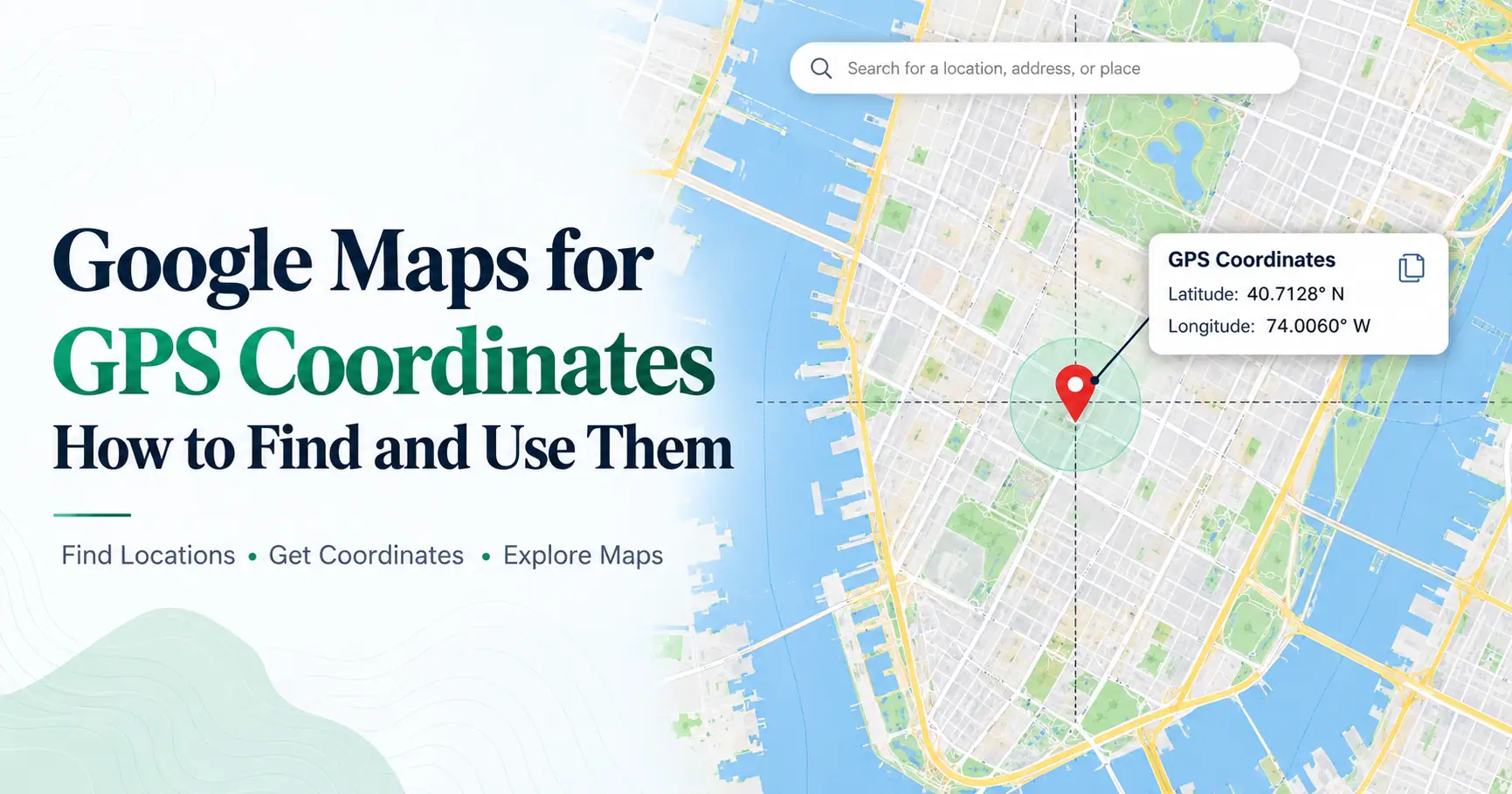
Learn how to find and use GPS coordinates in Google Maps on desktop, Android, and iPhone. Discover how to search by latitude and longitude, get directions, share coordinates, and find addresses using GPS locations.
Imagine finding a beautiful hiking spot without a street address. You want to save the location or share it with friends, but there is no nearby landmark. Using Google Maps for GPS coordinates can help you identify that exact point on a digital map.
GPS coordinates use latitude and longitude to describe geographic locations. Google Maps lets you find these numbers, search for places using them, and get directions to selected points.
You can perform these tasks on a computer, Android phone, or iPhone. This guide explains how to find, enter, copy, and share coordinates, along with common mistakes to avoid.
How to Use Google Maps for GPS Coordinates
Google Maps lets you find GPS coordinates for a selected location or search for a place using latitude and longitude. On a computer, right-click a map location to reveal its coordinates. On Android or iPhone, touch and hold an unlabeled area to drop a pin. You can also enter coordinates directly into the search bar.
This makes Google Maps useful for both identifying a location and finding a place from coordinates you already have.
What Are GPS Coordinates in Google Maps?
GPS coordinates are numerical values that identify a geographic position on Earth. They usually contain two numbers: latitude and longitude.
Latitude describes how far north or south a location is from the equator. Its values range from -90° to +90°.
Longitude describes how far east or west a location lies from the prime meridian. Its values range from -180° to +180°.
For example, 40.7128, -74.0060 identifies a location in New York City. The first number represents latitude, while the second represents longitude.
Positive and negative signs indicate direction. Negative latitude means south, while negative longitude means west.
These values are useful when a location has no recognizable street address.
How to Find GPS Coordinates on Google Maps Desktop
Finding coordinates on a computer is useful when you want to inspect locations precisely on a larger screen.
If you're learning how to find GPS coordinates on Google Maps, follow these steps:
Open Google Maps in your browser.
Search for a place or move around the map.
Right-click the location you want to identify.
Look for the latitude and longitude in the menu.
Click the displayed coordinate pair to copy it.
Google Maps displays the selected coordinates in decimal degrees.
You can paste the numbers into a document, message, or another mapping application.
Remember that these values describe the point you selected. They do not independently confirm property boundaries or survey markers.
How to Find GPS Coordinates on Google Maps Android
Android users can find location coordinates directly through the Google Maps app.
Open the app and search for the general area. Touch and hold an unlabeled part of the map until a red pin appears.
The coordinates of that selected point will appear in the search box.
This method is useful when you need to know how to get a GPS coordinate on Google Maps without using a computer.
You can also move around the map and select another point to obtain different coordinates.
The dropped pin represents your chosen map position, which may differ slightly from your phone's estimated location.
How to Find GPS Coordinates on Google Maps iPhone
Google Maps on iPhone provides a similar coordinate lookup feature.
Follow these steps:
Open the Google Maps app.
Find the location you want to check.
Touch and hold an unlabeled area.
Wait for the red location pin.
Open the location information panel to view the coordinates.
If you only need your phone's current coordinates, the built-in Apple Compass app is another option.
Compass can display latitude and longitude when suitable location permissions are enabled.
Google Maps is more useful when you want coordinates for a different place.
How to Find the Coordinates of Your Current Location
Your phone can estimate its position using GPS and other location signals.
Open Google Maps and tap the current-location control. A blue dot usually marks your estimated position.
To obtain coordinates through a dropped pin, zoom in and select the corresponding point on the map.
Keep in mind that a manually selected pin may not perfectly match your device's actual GPS reading.
Location permissions, surrounding buildings, and satellite visibility can affect the position shown.
For a more dependable estimate, check that location access is enabled and allow your device to determine its position.
How to Search Coordinates on Google Maps
Google Maps accepts geographic coordinates in its search field, making it possible to locate places without an address.
If you're wondering how to search coordinates on Google Maps, follow these instructions:
Open Google Maps.
Enter the coordinate pair in the search bar.
Write latitude first and longitude second.
Separate decimal-degree values with a comma.
Press Enter or tap Search.
Review the location shown on the map.
For example, searching 40.7128, -74.0060 displays a point in New York City.
The same approach works when someone shares GPS coordinates with you through a message.
Knowing how to look up coordinates on Google Maps is especially helpful for remote areas where street addresses are unavailable.
Which GPS Coordinate Formats Does Google Maps Accept?
Google Maps supports several common geographic coordinate formats.
Format | Example |
| Decimal degrees (DD) | 41.40338, 2.17403 |
| Degrees, minutes, seconds (DMS) | 41°24'12.2"N 2°10'26.5"E |
| Degrees, decimal minutes (DMM) | 41 24.2028, 2 10.4418 |
These examples identify approximately the same location in Barcelona, Spain.
For decimal degrees, enter latitude before longitude and use a period for decimal values.
Latitude must remain between -90 and 90, while longitude must remain between -180 and 180.
Incorrect punctuation or missing direction signs may cause Google Maps to reject the location or identify another place.
How to Get Directions Using GPS Coordinates
You can use GPS coordinates as a destination in Google Maps.
Enter the coordinates into the search bar and open the corresponding location. Select Directions, choose your travel mode, and enter your starting point if needed.
Google Maps will display available routes based on its navigation data.
For example, coordinates can help you navigate toward a rural campsite or a hiking trail entrance.
However, the selected geographic point may not have direct road access.
Always check the route and destination before traveling, particularly when visiting remote areas.
How to Copy and Share GPS Coordinates From Google Maps
Copying coordinates is useful when you need to save geographic information or send it to someone.
On a computer, right-click the selected location and click the displayed coordinate pair to copy it.
On mobile, you can inspect a dropped pin and use the available copying or sharing options. The exact controls may vary between Android and iPhone.
You can paste numeric coordinates into Notes, Messages, or a spreadsheet.
Alternatively, share a Google Maps location link.
A location link and a numeric coordinate pair are different. The link opens a map location, while the numbers can be entered into other compatible tools.
How to Find an Address Using GPS Coordinates
Google Maps can sometimes identify a nearby address or named place from latitude and longitude.
Enter the coordinates into the search field and examine the location information.
This process is known as reverse geocoding, which connects geographic coordinates with available address data.
For example, coordinates inside a city may return a nearby building, street, or business.
However, a remote field or mountain location may not have a postal address.
Even when an address appears, it may describe the nearest recognized location rather than the exact coordinate point.
Can You Use a Phone to Find GPS Coordinates?
Yes. Android phones and iPhones can use satellite positioning and other available signals to estimate their locations.
Google Maps can display coordinates for points selected on either platform.
iPhone users can also check current coordinates through the Compass app where supported.
GPS positioning does not always require mobile internet access. However, downloading maps, searching online, and loading place information may require a connection.
For basic geographic reference, smartphones provide a convenient alternative to dedicated GPS devices.
What Is the Best Free App for Finding GPS Coordinates?
The best app depends on your intended use.
Google Maps is a practical choice for coordinate searches, location sharing, and navigation.
Apple Compass is useful for checking current coordinates on supported iPhones.
Google Earth helps users explore satellite imagery and study geographic locations.
For additional map and land measurement tasks, FieldCalc provides location-based measurement tools.
No single app is ideal for every task. Some people need basic navigation, while others need to record field locations or measure distances.
Choose a tool based on the information you need rather than assuming one app is always the most accurate.
Common GPS Coordinate Errors in Google Maps
One common mistake is reversing latitude and longitude. Google Maps expects latitude first when searching a standard coordinate pair.
Another error involves missing negative signs or using commas instead of periods within decimal numbers.
Mixing decimal degrees with degrees-and-minutes formats can also cause incorrect results.
Users sometimes select the wrong point on a map and assume the coordinates describe their exact physical position.
Checking the coordinate format, signs, and selected map location can prevent many of these problems.
How Accurate Are GPS Coordinates in Google Maps?
Coordinate values may contain several decimal places, but that does not guarantee equivalent real-world accuracy.
When you select a point manually, the coordinates represent that map location.
When you use your phone's current position, the result depends on its location estimate.
Buildings, indoor environments, trees, and signal conditions can affect GPS positioning.
For everyday navigation, Google Maps is useful. For legal surveying or precise property boundaries, professional measurement methods may be required.
Practical Uses of GPS Coordinates
GPS coordinates are useful when ordinary addresses are missing or difficult to describe.
Travelers can save remote destinations, hikers can identify trail locations, and field workers can record observation points.
Coordinates also help people share rural locations, compare places across mapping applications, and organize geographic records.
Google Maps makes these tasks easier by connecting numerical coordinates with a visual map.
Final Thoughts
Using Google Maps for GPS coordinates helps you find locations, search by latitude and longitude, and share geographic information.
Desktop users can right-click locations to obtain coordinates, while Android and iPhone users can drop pins on the map.
Coordinates are useful for directions, remote locations, and address searches, but accurate formatting matters.
Remember that selected map points, device GPS estimates, and postal addresses are not always identical. Checking these differences helps you use geographic coordinates more effectively.
Frequently Asked Questions
Yes. Enter a correctly formatted latitude and longitude pair into the Google Maps search bar. The application will locate the corresponding geographic point, even when no street address is available.
Search for the coordinates in Google Maps and select Directions. Choose your preferred travel mode and starting location. Available routes depend on roads, paths, and navigation information near the selected destination.
Yes. Android phones and iPhones can display coordinates through Google Maps. Touch and hold an unlabeled location to drop a pin, then check its geographic information.
Yes. The iPhone Compass app can display your current latitude and longitude when location access is enabled. Google Maps can also provide coordinates for locations selected on the map.
Google Maps is useful for coordinate searches, directions, and sharing locations. Apple Compass and Google Earth offer different features. The most suitable option depends on whether you need navigation, current coordinates, or satellite imagery.
Enter the latitude and longitude into Google Maps and inspect the location details. The map may display a nearby address or place name, although some locations do not have a recognized postal address.