



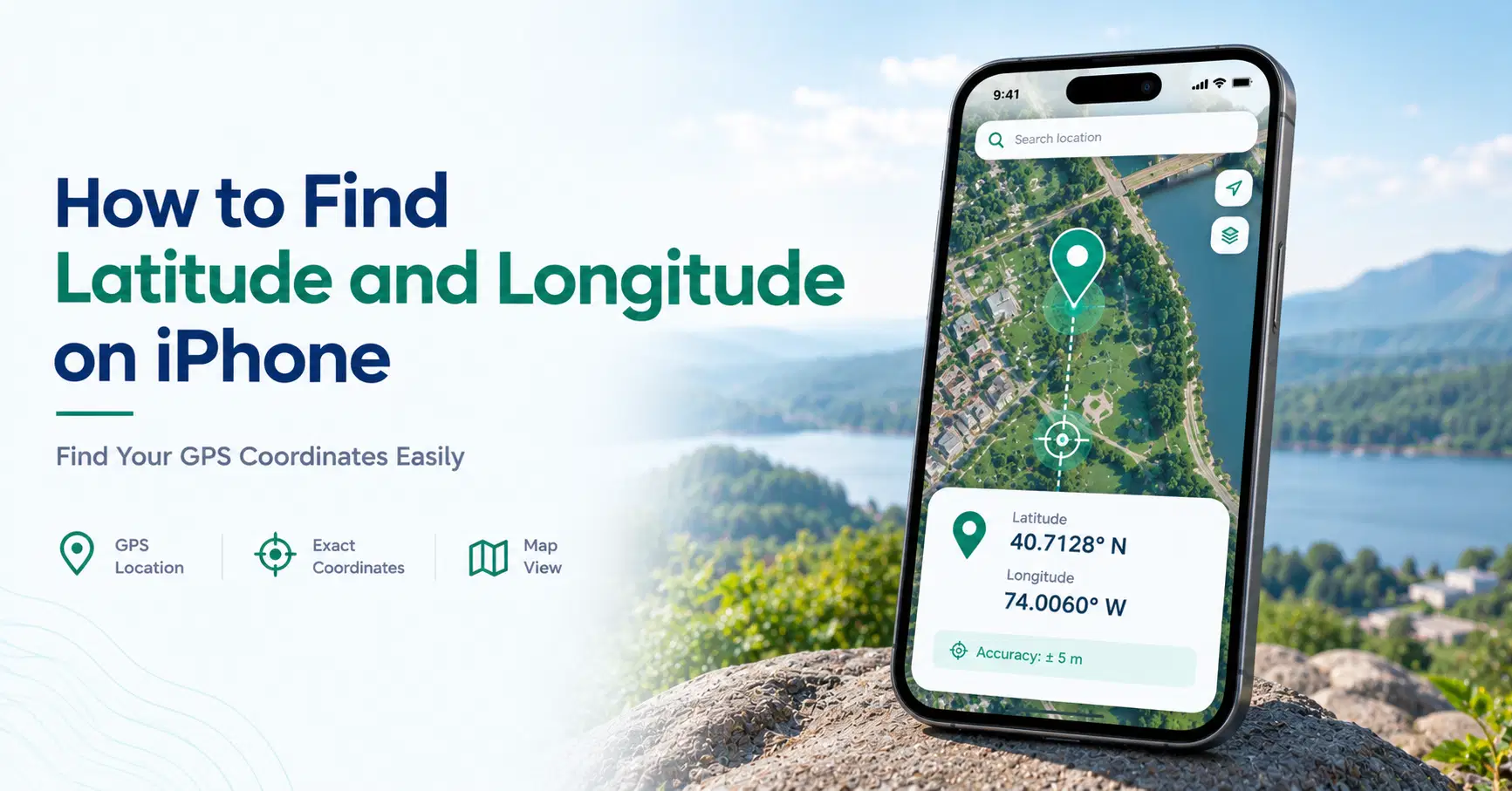
Learn how to find latitude and longitude on your iPhone using Compass, Apple Maps, and Google Maps. Discover simple ways to view, copy, and share GPS coordinates, check photo locations, and improve location accuracy.
Imagine you're hiking somewhere without a street address and want to save your location. A pair of GPS coordinates can help identify that spot on a map. If you're wondering how to find GPS coordinates on iPhone, you can use built-in apps without needing special equipment.
Your iPhone supports location tracking through GPS and other positioning technologies. Apps such as Compass, Apple Maps, and Google Maps can help you find, view, or share geographic locations.
This guide explains how to check latitude and longitude, copy coordinates, find locations from photos, and solve common positioning problems.
How to Find GPS Coordinates on iPhone
You can find GPS coordinates on an iPhone using the built-in Compass app or a mapping app. Compass displays your current latitude and longitude when location access is enabled. In Google Maps, you can touch and hold an unlabeled map location to drop a pin and find its coordinates. Apple Maps also supports locating and sharing places.
The best method depends on whether you want your current position or the coordinates of another location.
What Are Latitude and Longitude?
Latitude and longitude are geographic coordinates that identify positions on Earth. Together, they provide a location reference that works even when an address is unavailable.
Latitude tells you how far north or south a place is from the equator. Its values range from -90° to +90°.
Longitude measures position east or west of the prime meridian, with values ranging from -180° to +180°.
For example, the coordinates 40.7128, -74.0060 identify a location in New York City. The first number is latitude, while the second is longitude.
These coordinates are useful for navigation, hiking, mapping, research, and sharing locations in places without recognizable street addresses.
Does iPhone Have Built-In GPS?
Yes. iPhones have built-in location capabilities that use GPS and other satellite navigation signals to estimate their geographic position.
Apple's Location Services can also use Wi-Fi networks, cellular information, and Bluetooth to help determine where the device is located.
GPS satellite positioning does not always need an internet connection. However, downloading maps, searching for places, and accessing some navigation features may require internet access.
Positioning accuracy can change depending on your surroundings. Open outdoor areas generally provide better satellite visibility than underground spaces or streets surrounded by tall buildings.
How to Find GPS Coordinates on iPhone Compass
Apple's Compass app is one of the easiest ways to check your current geographic coordinates.
If you're searching for how to find GPS coordinates on iPhone Compass, follow these steps:
- Open the Compass app on your iPhone.
- Allow the app to access your location if prompted.
- Look near the bottom of the Compass screen for your latitude and longitude.
- Tap the coordinates to open the location in Maps, where supported.
The coordinates represent the phone's estimated current location, not a distant point selected on a map.
Compass also displays your heading, which shows the direction the phone is facing. That heading is different from latitude and longitude.
Coordinates or elevation information may be unavailable in some countries or regions.
For checking your position while outdoors, Compass is often more convenient than searching through a map.
How to Find Coordinates on iPhone Maps
Apple Maps helps you identify your current location, search for places, and share selected points.
To find a place, open Maps and search for an address or move around the map. You can touch and hold a location to place a pin and inspect the available location details.
If your goal is how to find coordinates on iPhone Maps, check the selected location's details for available geographic information. The exact options and presentation can vary by iOS version and location type.
Apple Maps is particularly useful for sharing a location pin or opening directions.
However, if you need numeric latitude and longitude immediately, Compass or Google Maps may offer a more straightforward method.
How to Find Latitude and Longitude on Google Maps iPhone
Google Maps allows you to identify the coordinates of a selected map point, including places without a street address.
For how to find latitude and longitude on Google Maps iPhone, use these steps:
- Open the Google Maps app.
- Search for the area you want to inspect.
- Touch and hold an unlabeled location on the map until a red pin appears.
- Open the dropped pin's information.
- Look for the latitude and longitude displayed in decimal degrees.
If you want coordinates near your current position, tap the current-location control first. Then drop a pin at the location indicated on the map.
Remember that the pin identifies the point you selected. It may not perfectly match the phone's estimated physical position.
You can repeat this method to find coordinates for another building, trail, field, or landmark.
How to Copy GPS Coordinates on iPhone
Once you have coordinates, you may want to save them in Notes, send them through Messages, or paste them into another mapping tool.
Learning how to copy GPS coordinates on iPhone depends on which app you use.
In Google Maps, you may be able to tap the displayed coordinate pair or use an available copy action in the location details. Copying behavior can differ by app version.
Where text selection is supported, you can select the coordinate values and copy them.
If the application does not provide a direct copy option, record the values manually or share a map link instead.
When copying numeric coordinates, keep both values in the correct order. Missing a negative sign or changing a digit could identify a different place.
How to Share GPS Coordinates From iPhone
There are several ways to send a location to another person. You can share a pair of numeric coordinates, a dropped pin, or a link that opens in a mapping application.
For example, you could paste coordinates into a message so the recipient can search for the same point.
To understand how to share GPS coordinates from iPhone, first decide whether the recipient needs the actual numbers or simply a location they can open.
A Google Maps link is convenient for navigation, while numeric coordinates may be useful for fieldwork or location records.
Keep in mind that sharing a pin does not always send the raw latitude and longitude values.
How to Enter Latitude and Longitude in Google Maps
Google Maps supports searching for places using geographic coordinates instead of addresses.
Open Google Maps and enter a coordinate pair into its search bar. For example, 40.7128, -74.0060 uses decimal degrees, with latitude first and longitude second.
Separate the numbers with a comma and use periods as decimal separators.
Google Maps also supports accepted formats using degrees, minutes, and seconds.
Be careful with negative values. A negative latitude represents a location south of the equator, while a negative longitude represents a location west of the prime meridian.
Correct formatting helps Google Maps identify the intended point.
How to Find GPS Coordinates From an iPhone Photo
Some iPhone photos contain geographic location information saved when the picture was taken.
To check a photo's location:
- Open the Photos app.
- Select the picture.
- Swipe upward or tap the information button.
- Look for a location map or address.
- Open the available location information to inspect where the picture was recorded.
The Photos app may display a map rather than the exact numeric coordinates.
If you need the original latitude and longitude values, a suitable photo metadata viewer may be necessary.
Not every picture contains GPS information. Location data may be missing because camera location access was disabled, the photo was downloaded, or metadata was removed.
A photo's location can also be edited, so saved coordinates are not always proof of where the image was originally captured.
How to Enable Location Services on iPhone
If Compass or Maps cannot identify your location, check whether Location Services is enabled.
Follow these steps:
- Open Settings.
- Select Privacy & Security.
- Tap Location Services.
- Turn Location Services on.
- Find Compass, Maps, or Google Maps in the app list.
- Choose an appropriate permission, such as While Using the App.
- Enable Precise Location if the app supports it and you need more specific positioning.
These settings control how applications access your phone's location.
Precise Location allows supported apps to request more detailed positioning, but it does not guarantee perfect accuracy.
Why Are My iPhone GPS Coordinates Missing or Incorrect?
Missing coordinates often result from disabled Location Services or restricted app permissions.
If the coordinates appear incorrect, check whether the app can access Precise Location. You should also confirm that you're viewing your current position rather than a manually selected map point.
Buildings, heavy tree cover, and indoor environments can interfere with satellite reception.
Moving outdoors to a clearer area may help your iPhone obtain a better position.
Keeping iOS and your mapping apps updated can also help avoid certain software-related problems.
If Compass does not show coordinates, remember that some location information may be unavailable in particular regions.
How Accurate Are iPhone GPS Coordinates?
iPhone coordinates are generally useful for navigation, outdoor activities, and sharing approximate locations. However, their accuracy changes with satellite visibility, nearby structures, and available positioning signals.
A coordinate pair may contain several decimal places, but those digits do not guarantee the same level of physical accuracy.
For example, a phone might display a highly detailed coordinate while its estimated position remains several meters away from the actual location.
For casual navigation, this may be acceptable. Professional land surveying requires more specialized equipment and methods.
When Is Finding Latitude and Longitude Useful?
Latitude and longitude are useful whenever a normal address is missing or difficult to describe.
You might record the position of a hiking trail, identify a remote campsite, save a scenic viewpoint, or share a meeting location in a large outdoor area.
Coordinates also help with mapping projects, field observations, and comparing locations across geographic tools.
For emergency situations, use official emergency communication methods rather than relying only on a coordinate message.
Final Thoughts
Learning how to find GPS coordinates on iPhone gives you several ways to identify and share locations. Compass is convenient for checking your current latitude and longitude, while Google Maps can show coordinates for selected points. Apple Maps helps with location searches and sharing.
You can also inspect photo location data, copy coordinate values, and adjust Location Services when necessary.
Remember that GPS readings are estimates. For everyday navigation they are useful, but precision-dependent work may need professional equipment.
Frequently Asked Questions
Yes. The built-in Compass app can display your current latitude and longitude when location access is available. Google Maps can also show coordinates for selected map points.
Open the Compass app and look for the coordinates shown on the screen. Make sure Location Services is enabled and Compass has permission to access your location.
Open Google Maps and touch and hold an unlabeled map location to drop a pin. The pin's details can display the selected point's latitude and longitude.
Yes. Enter the latitude and longitude into the Google Maps search bar, with latitude first. For example, 40.7128, -74.0060 identifies a location in New York City.
Open the photo in Photos and swipe up or tap the information button. If location data exists, a map or address may appear. A metadata viewer may be needed for numeric coordinates.
Location Services may be disabled, the app might lack permission, or the device may have difficulty determining its position. Some Compass location information is also unavailable in certain regions.