
Learn how to draw a buffer zone around a property using GIS tools and satellite maps. Explore inward and outward buffers, property boundary measurements, radius circles, and Google Maps limitations for accurate land planning.
Suppose you're planning a fence, garden, or construction project near your property line. You may want to see how much land lies within a certain distance of the boundary. Learning how to create a buffer zone on a map can help you visualize that space before making decisions.
A property buffer uses a chosen distance to create a zone around or inside a parcel. Digital maps, satellite imagery, and GIS software can help you draw these zones.
However, a buffer is different from a circle drawn around one location. This guide explains both methods, including their uses, tools, and measurement limitations.
How to Create a Buffer Zone on a Map
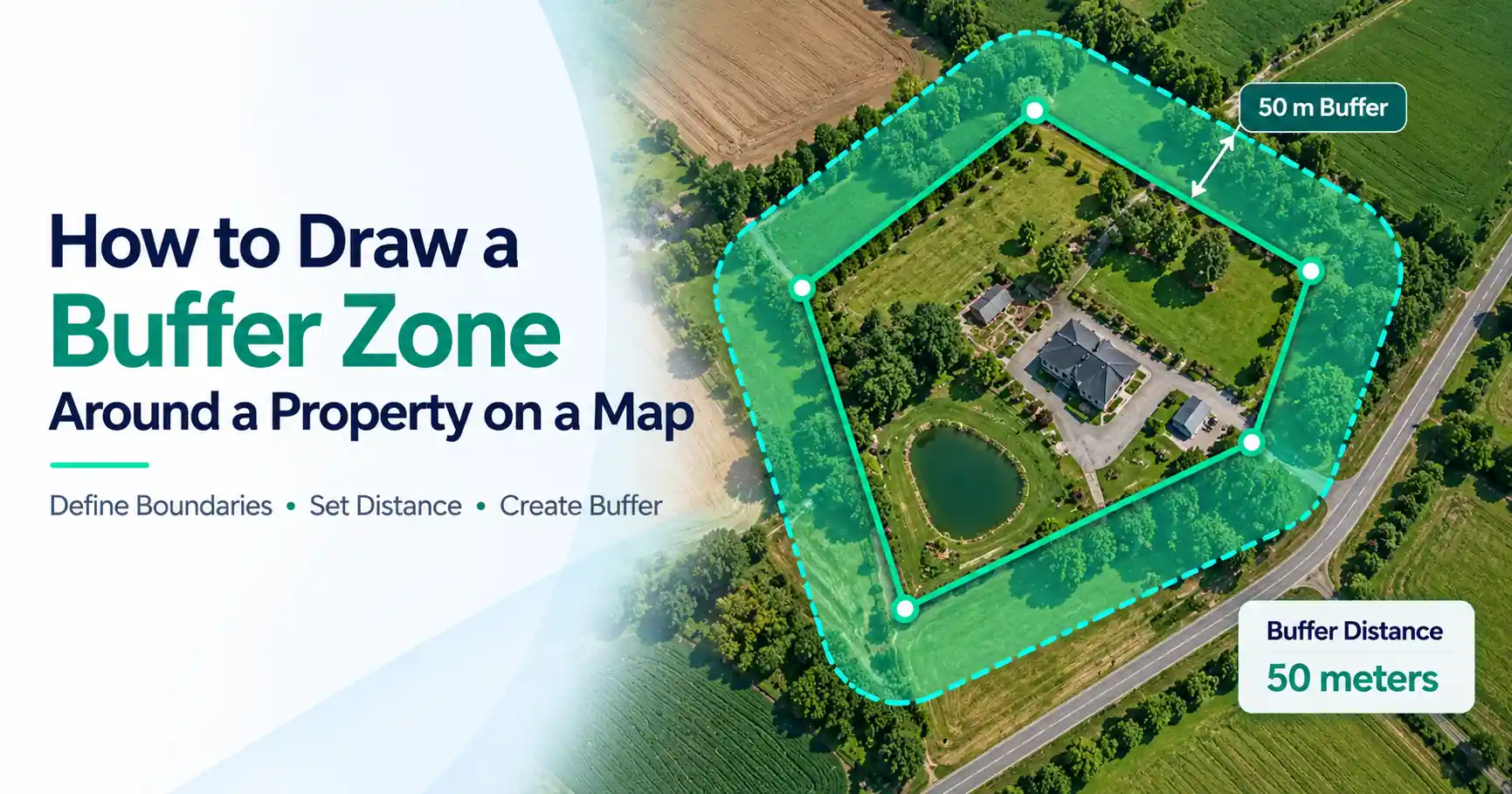
To create a buffer zone around a property, first identify or draw its boundary as a polygon. Open a GIS tool that supports buffering, enter a distance in feet or meters, and generate an inward or outward buffer. The resulting zone follows the parcel's shape rather than forming a circle around its center.
You can use satellite imagery to locate the property, but reliable parcel records are needed to identify the intended boundaries.
What Is a Property Buffer Zone?
A property buffer zone is an area defined by a chosen distance from a property boundary. It helps people visualize nearby land or space within a parcel.
For example, a landowner might create a 20-foot buffer inside a property to identify an area near the boundary.
If you're wondering what is a buffer zone in GIS, it is a geographic area generated around a point, line, or polygon using a specified distance.
Buffer zones are useful for landscaping, land-use planning, environmental studies, and preliminary development assessments.
A mapped buffer is only a planning aid. It does not automatically represent a legally required setback.
Radius Circle vs. Property Boundary Buffer
A radius circle and a property boundary buffer serve different purposes.
A radius circle measures distance from one central point. For example, a 500-meter radius around a farmhouse includes locations within 500 meters of that building.
A property boundary buffer follows the outline of the entire parcel.
Imagine a rectangular property with a 20-meter outward buffer. The buffer extends 20 meters beyond its sides and around its corners.
Unlike a circle centered on the property, this shape reflects the parcel's actual outline.
A property buffer zone map may also show buffers around roads, rivers, or other geographic features.
How to Find and Draw Property Boundaries on a Map
Before creating a buffer, you need to identify the intended property outline.
County GIS parcel viewers, assessor maps, recorded plats, and existing surveys can help locate parcel boundaries.
For a basic map drawing:
Find the property using its address or parcel number.
Review available land records.
Identify the approximate boundary corners.
Open a mapping tool with polygon drawing features.
Place points along the boundary.
Connect the points to close the polygon.
Save the shape where supported.
For irregular properties, additional points help represent bends and angled boundaries.
Visible fences, roads, and satellite images may not match legal property lines. Use reliable records when boundary location matters.
How to Draw a Buffer Around a Property Using GIS
A GIS application can generate a buffer automatically from a property polygon.
If you want to know how to draw a buffer around a property, follow this general process:
Open a GIS application such as QGIS.
Import or draw the property's polygon boundary.
Check that the boundary is positioned correctly.
Choose a suitable projected coordinate system for distance measurement.
Open the buffer processing tool.
Enter a distance, such as 20 meters.
Generate the outward buffer or use an appropriate inward-buffer method.
Review the result and save it if needed.
The software calculates the offset around the mapped shape.
For accurate distance calculations, use suitable measurement units rather than treating latitude and longitude degrees as meters.
Inward and Outward Property Buffers
An outward buffer extends beyond the parcel's existing boundary. An inward buffer creates an offset toward its interior.
For example, a 30-foot inward buffer can highlight a strip of land along the inside edge of a property.
The remaining interior area depends on the property's size and shape.
A narrow parcel may have very little space left after a large inward offset. In some cases, the interior can disappear entirely.
Certain GIS tools create inward polygon offsets using negative buffer distances.
An outward buffer may overlap neighboring land, but drawing it does not grant ownership or permission to use that land.
How to Create a Buffer Zone Using Satellite Maps
Satellite imagery provides a useful background for identifying visible property features.
To understand how to create a buffer zone using satellite maps, first locate the parcel on an imagery layer.
Next, compare the visible features with available boundary records and draw or import the parcel outline.
Once the polygon is ready, apply a buffer distance using a compatible GIS tool.
The resulting zone can be displayed over satellite imagery to inspect nearby roads, buildings, vegetation, and water features.
This is a common approach in buffer zone mapping, but satellite images alone do not calculate buffers or verify legal property boundaries.
Can You Draw a Boundary on Google Maps?
Standard Google Maps allows users to measure distances between selected points, but it is not a dedicated property boundary editor.
On a computer, right-click a location and select Measure distance. Add points around the property to measure connected segments.
This can help visualize a perimeter, but it does not create a saved legal parcel boundary.
For custom shapes, Google offers a separate application called Google My Maps.
It supports drawing and saving lines or polygons, making it more suitable for simple boundary illustrations.
How to Draw a Property Boundary in Google My Maps
Google My Maps allows users to create personalized maps with drawn shapes.
To outline a property:
Open Google My Maps on a computer.
Create a new map.
Search for the property.
Select Draw a line.
Choose Add line or shape.
Click along the intended boundary.
Complete the polygon.
Name and save the shape.
The resulting outline can help with visual planning or sharing a map.
However, Google My Maps does not automatically generate a fixed-distance polygon buffer using its basic drawing feature.
For that task, dedicated GIS software is more appropriate.
How to Draw a Radius Around a Location
If you only need a circular distance zone, a radius map is usually easier than a property buffer.
A radius measures the distance from a selected center point to the edge of a circle.
For example, a one-mile radius around a home includes locations within one mile in straight-line distance.
Learning how to create a radius around a location usually involves choosing a map point, entering a distance, and generating the circle.
Remember that a radius does not follow roads or irregular property boundaries.
Can Google Maps Draw a Radius Circle?
Standard Google Maps does not provide a built-in tool that automatically draws a fixed-radius circle for ordinary users.
Its Measure distance feature can measure straight-line distances between points, but it does not generate a circular radius overlay.
If you're searching for how to draw a radius on a map, a dedicated radius mapping tool is more suitable.
Google Maps Platform also supports circles in developer-created applications. However, those capabilities are different from the standard Google Maps interface.
Can You Draw a Radius on Apple Maps?
Apple Maps does not generally include a native tool for drawing custom radius circles.
The application focuses mainly on finding places, viewing locations, and getting directions.
Users who need circular distance overlays can choose a compatible third-party mapping application or GIS tool.
The available features depend on the selected software and device.
How to Measure Distance Around a Property
Measuring distance around a property means finding its perimeter.
The perimeter is the combined length of every boundary segment.
For example, a rectangular property measuring 100 feet wide and 150 feet long has a perimeter of 500 feet.
If you're learning how to measure distance around a property, measure each side and add the lengths.
This differs from buffer distance. A 20-foot buffer extends a chosen distance from the boundary, while perimeter measures the boundary's total length.
For irregular properties, mapping tools can help measure individual segments.
How Accurate Is Buffer Zone Mapping?
The quality of a buffer depends on the accuracy of the original boundary and the mapping method.
If a parcel outline is misplaced, the generated buffer will also be misplaced.
Map scale, satellite image alignment, boundary data, and coordinate systems can affect results.
GIS software generally performs local distance calculations more reliably when using a suitable projected coordinate system with meters or feet.
The generated curves may also be approximated using short line segments.
A mathematically consistent buffer does not guarantee that the input parcel boundary is legally correct.
Buffer Zones, Building Setbacks, and Legal Boundaries
A property buffer can help visualize separation distances, but it does not determine building regulations.
Actual setbacks depend on local zoning, structure type, easements, road frontage, and other applicable rules.
There is no universal setback distance for every property.
For example, drawing a 15-foot inward buffer does not prove that construction is permitted outside that zone.
Before building near a property line, check local planning requirements and reliable boundary records.
A professional land survey may be necessary when precise legal boundaries are required.
Common Mistakes When Creating a Property Buffer
One common mistake is drawing a circle around the property's center instead of generating a buffer around its boundary.
Another is confusing property perimeter with buffer width.
Using feet in a tool configured for meters can also produce incorrect results.
Some users assume an existing fence marks the legal boundary or treat old satellite imagery as current property information.
Others mistake Google Maps' distance measurement feature for a true GIS buffer tool.
Checking the source boundary, map units, and selected operation can prevent many errors.
Final Thoughts
Knowing how to create a buffer zone on a map helps you visualize distances around a property for planning and analysis.
A property buffer follows the parcel boundary, while a radius circle measures distance from one point. GIS tools can generate inward and outward buffers, while Google My Maps supports custom boundary drawings.
Satellite imagery helps provide context, but it cannot verify ownership lines.
For construction, legal setbacks, or boundary disputes, use appropriate property records and professional guidance.
Frequently Asked Questions
A property buffer zone is a mapped area defined by a specified distance from a parcel or its boundary. It can help with land-use planning, environmental analysis, and visualizing separation distances around a property.
Use a mapping application that supports polygons. Identify the parcel corners, place connected points along the intended boundary, and close the shape. Google My Maps supports drawing custom lines and polygons for visual planning.
Standard Google Maps supports distance measurement but does not provide a dedicated automated polygon buffer feature. You can draw custom shapes in Google My Maps, while a GIS tool is better suited to accurate distance-based buffering.
A 20-foot zone along the inside of a property's boundary is one example. Another is a 100-meter area around a road. These distances are illustrative and do not represent universal legal requirements.
Standard Google Maps does not automatically draw fixed-radius circles. You can measure distances between points, but a dedicated radius mapping tool is more convenient for creating a complete circle around a location.
Apple Maps does not generally offer a built-in custom radius drawing tool. To create a circular distance zone, use a compatible specialized mapping application or GIS program that supports radius overlays.