
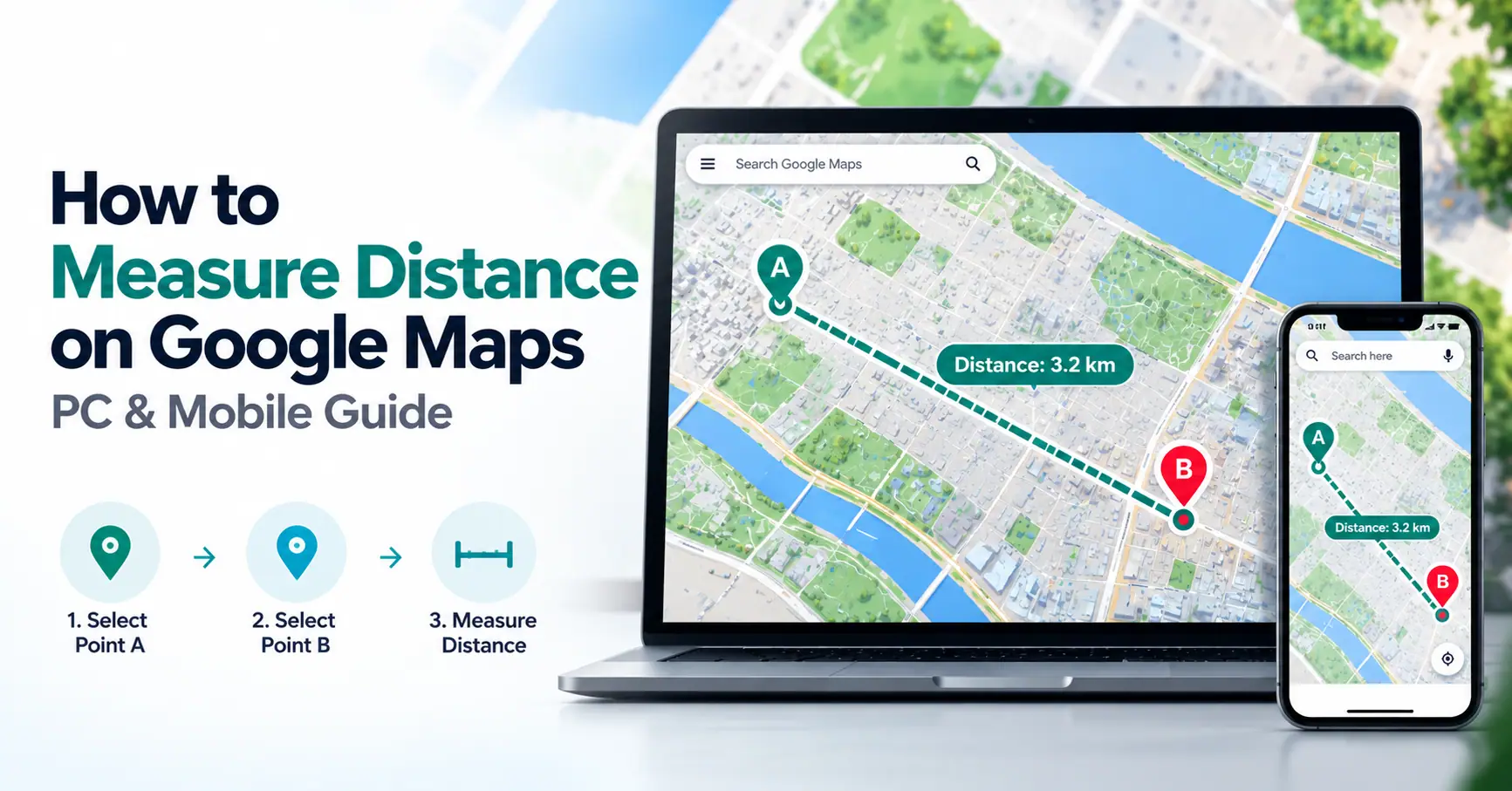
Want to know how far two places are? Discover how to measure distance on Google Maps using your computer or phone, add multiple points, and compare straight-line distances with driving and walking routes.
Ever wondered how far two places are without following roads? Maybe you're checking the distance between your home and a park, measuring a walking path, or comparing two locations. Knowing how to measure distance on Google Maps makes these tasks easier.
Google Maps offers a built-in tool that measures direct distance between selected points. It works on computers, iPhones, and Android phones. You can also add several points to estimate the length of a custom path.
However, measuring direct distance is different from checking driving or walking routes. Understanding which feature to use will help you get the distance that actually matters for your plans.
How to Measure Distance on Google Maps
Google Maps has a Measure distance feature that calculates the distance between two or more points. On a computer, right-click your starting location and select Measure distance. On a phone, press and hold an unlabeled map location to drop a pin, then choose the same feature. Results appear in miles and kilometers.
The tool measures direct geographic distances along connected lines. It does not automatically follow roads or walking paths.
For actual travel routes, use Google Maps Directions instead.
How to Measure Distance on Google Maps on a PC
Measuring distance on a computer is useful because the larger screen makes it easier to select locations and adjust points.
Follow these steps:
Open Google Maps in your web browser.
Search for the area or location you want to measure.
Right-click your starting point on the map.
Select Measure distance from the menu.
Click another location to create the ending point.
View the total distance displayed at the bottom of the map.
Continue clicking if you want to measure additional segments.
You can drag existing points to change their positions. Clicking an added point also lets you remove it.
For example, you could measure the direct distance between a school and a nearby park without creating a driving route.
When finished, close the measurement panel to clear the current measurement.
How to Measure Distance on Google Maps on iPhone
The Google Maps app lets iPhone users measure distances without using a computer.
If you're searching for how to measure distance on google maps iphone, follow these steps:
Open the Google Maps app on your iPhone.
Find your starting location.
Touch and hold an unlabeled area until a red pin appears.
Open the location details and select Measure distance.
Move the map until the black circle reaches your destination.
Tap Add point if you want to include another segment.
Check the total distance shown near the bottom.
You can use Undo to remove the last point or Clear to remove all measurement points.
This feature is helpful when checking distances between landmarks, properties, or outdoor locations.
The process uses the Google Maps app, not Apple Maps.
How to Measure Distance on Google Maps on Android
Android users can measure distance with a process similar to the iPhone method.
To understand how to measure distance on google maps android, open the Google Maps app and locate your starting point.
Press and hold an unlabeled spot on the map until a red pin appears. Open its details and select Measure distance.
Move the map so the black circle sits over the destination. The distance updates as you move the map.
If you need more points, tap Add point and continue moving the map.
The total measurement appears at the bottom. Use Undo or Clear to edit or restart your measurement.
Menu placement may vary slightly depending on the app version.
How to Measure Distance Between Two Points on Google Maps
To measure the direct distance between two locations, choose one starting point and one ending point.
For example, imagine checking how far a hospital is from a school. Instead of selecting Directions, use Measure distance and mark both locations.
Google Maps will display their geographic separation.
This answers the common question of how to measure distance between two points on google maps.
The result represents the shortest surface distance between the selected locations, not the distance traveled along roads.
Avoid adding intermediate points unless you want to measure a longer connected path.
How to Measure Multiple Distances on Google Maps
Google Maps also allows you to connect several measurement points.
This is useful when a path bends or passes through several locations.
For example, suppose you want to estimate the length of a walking path around a park. One straight line would not represent the path accurately.
Instead, place points along its bends and turns. Google Maps adds the lengths of the connected segments.
Adding more well-placed points can help the measurement follow the visible path more closely.
However, the result is still based on your selected lines. It is not necessarily the same as a suggested walking route.
This makes mapping distances on google maps useful for checking custom paths that do not fit a simple two-point measurement.
Straight-Line Distance vs Driving Distance
Google Maps offers different ways to measure distance, and the results depend on which feature you use.
Distance Type | What It Measures | Google Maps Feature |
| Straight-line | Direct distance between locations | Measure distance |
| Driving | Distance along a road route | Directions |
| Walking | Distance along a suggested walking route | Directions |
| Custom path | Total length of selected segments | Measure distance |
Straight-line distance is sometimes called as-the-crow-flies distance.
Two places may be close in a straight line but much farther apart by road because of rivers, buildings, road layouts, or limited crossings.
Choose Measure distance for geographic separation and Directions when planning an actual journey.
How to Calculate Driving and Walking Distance
If your goal is to travel between two places, use the Directions feature.
Open Google Maps, search for your destination, and select Directions. Enter your starting location if it is not already selected.
Choose driving, walking, cycling, or another available travel mode.
Google Maps will show a suggested route with its distance and estimated travel time.
Some journeys offer alternative routes. These may have different distances because they follow different roads or paths.
Travel time can also change because of traffic, route conditions, and transportation mode.
When you need to get distances on google maps for a real journey, Directions is generally more suitable than a straight-line measurement.
Google Maps Distance Calculator: Miles and Kilometers
The built-in Google Maps distance calculator can display measurement results in miles and kilometers.
On desktop, the Measure distance panel shows the total length of your selected lines. Mobile devices also display the measurement near the bottom of the screen.
Google Maps offers distance-unit preferences in supported settings, although menu locations may differ by platform.
Before comparing two measurements, check that both use the same unit.
For reference, one mile is approximately 1.609 kilometers.
This distinction matters when comparing distances from different maps, devices, or property records.
How Accurate Is Google Maps Distance Measurement?
Google Maps can provide useful measurements for everyday planning, but accuracy depends partly on how you place the points.
If the starting point is slightly misplaced, the distance will reflect that different location.
For curved paths, using too few points may also underestimate the path length. More carefully placed points can produce a closer estimate.
Map data and how features appear at different zoom levels may affect where you identify a boundary or landmark.
For general distance comparisons, the tool is practical. However, it should not replace professional surveying equipment when legal property boundaries or high-precision measurements are required.
Why Can't I Find Measure Distance on Google Maps?
If the Measure distance option is missing, first check how you selected your starting location.
On a computer, right-click the map instead of opening a location through a normal left-click.
On mobile, touch and hold an unlabeled part of the map to drop a pin. Selecting a business name or existing location label may open different information.
You may also need to scroll through the location details to find the option.
Other possible causes include an outdated app or a limited interface mode. Google Maps Lite mode on desktop does not support Measure distance.
If the option remains unavailable, try the standard browser interface or update the mobile app.
Common Mistakes When Measuring Distance
One frequent mistake is using Measure distance when the actual goal is to check driving distance.
Other common problems include selecting the wrong endpoint, adding unnecessary points, or confusing kilometers with miles.
When measuring a curved path, placing only the beginning and ending points can produce a much shorter result than the path itself.
Another mistake is assuming that the total length of several connected segments equals the shortest distance between the first and last locations.
For land or property measurements, do not treat points marked on a general map as legally confirmed boundary markers.
Choosing the right feature and placing points carefully can prevent most of these problems.
When Is Google Maps Distance Measurement Useful?
Measuring distance directly on a map can help with many everyday tasks.
You might compare the distance between neighborhoods, check how far a landmark is from your home, or estimate the length of a park path.
Outdoor enthusiasts can examine custom walking paths, while travelers can compare direct distances before looking at road routes.
The tool may also help with basic property research or comparing nearby locations.
For complex geographic projects, specialized GIS or surveying tools may provide additional measurement capabilities.
Google Maps works best when you need a convenient way to understand distances rather than perform a formal land survey.
Final Thoughts
Learning how to measure distance on Google Maps gives you a quick way to compare locations using a PC, iPhone, or Android phone.
Use Measure distance when you want the direct separation between points or the total length of selected map segments. For driving and walking routes, choose Directions instead.
Accurate point placement, consistent units, and choosing the correct feature make your results more useful. For legal boundaries or professional measurements, use suitable surveying methods.
Frequently Asked Questions
Yes. Google Maps has a Measure distance feature that calculates the direct geographic distance between two selected locations. It does not follow roads automatically. For driving or walking distance, use the Directions feature instead.
Open Google Maps, right-click your starting location, and select Measure distance. Click the destination to see the result. You can also add more points or drag existing points to adjust the measurement.
Open Google Maps and press and hold an unlabeled location until a pin appears. Select Measure distance, move the map to your destination, and check the displayed result. Use Add point to extend the measurement.
Yes. Google Maps allows you to add several points and calculates the total length of the connected segments. This is useful for estimating custom paths, curved routes, or distances that involve several locations.
Google Maps supports both, but through different features. Measure distance shows direct geographic distance or the total of connected segments. Directions calculates routes using roads or available paths based on the selected transportation mode.
You may be selecting a location label instead of an unlabeled map point. On desktop, try right-clicking the map. On mobile, press and hold to drop a pin and check the location details. App versions and limited interface modes may also affect availability.